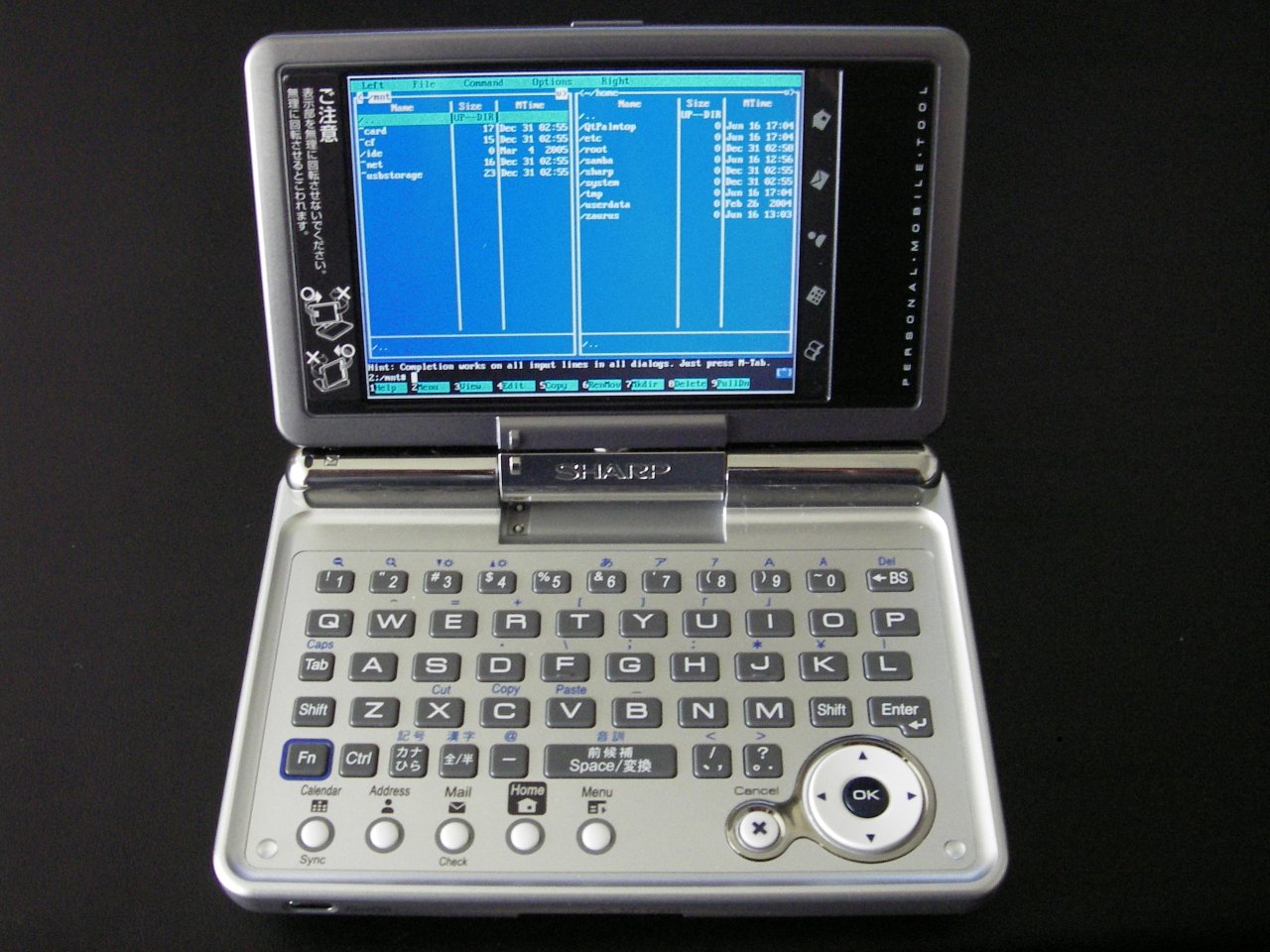
 |
C+D
See also:
Introduction ∞
This applies to pdaXrom but may be adaptable to other ROM installations. These instructions were tested thoroughly with pdaXrom 1.1.0beta4.
If something goes wrong, see Zaurus SL-C1000 NAND backup or restore.
Preparation ∞
- Make sure you have performed a NAND backup and are familiar with restoring it.
-
Download the appropriate files and make them available on your storage card. (unpack the archives if you need to)
- Your card should be formatted FAT16.
-
Insert your storage card.
- Make sure the other storage card slot is empty.
Step one ∞
- Enter the Zaurus SL-C1000 service menu (
D+M) - Run NAND Flash Erase from the Extra Menu.
- Unplug the power adapter.
-
Press and hold
CandDand plug the power adapter back in.- The battery should still be out.
- The Green LED should be on for about 20 seconds. Once lit you can let go of
C+D. -
If both LEDs are flashing, this means that you have a bad storage card or you’re missing the necessary data on it. Try with another card.
When the green LED turns off, unplug the power adapter.
Step two ∞
- Press and hold
ON, and plug the power adapter back in. Keep holding ON and be patient! Your system IS NOT BRICKED. Patience!! -
Wait until the emergency system boots and release
ON.
Wait while the automatic setup runs.
While it’s running you can put the battery back in.
After the setup process, the Zaurus will be rebooted and you will see a bunch of Linux boot information scrolling by as it boots up.
It should boot into a working system, and then you may remove the update files from your storage card.


ported