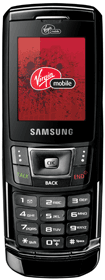
 |
was virginmobile.ca/vmc/en/phones/product-details.do?productId=10-00071 [ 1 ]
- (date not recorded) – I switched to a Samsung red brick phone thing
- (date not recorded – ~2009) – Purchased
-
(date not recorded) – I used to use a Nokia 2125i
2009 ∞
Reviewed through the first half of 2009.
In Dec 2008, I experimented with phones from Virgin Mobile.
- Blackberry Curve sucks. I also almost got ripped off completely because of this phone.
-
Motoroloa KRZR K1m requires you to purchase an adapter to use your own headphones.
- Expensive to buy.
- Reportedly isn’t a very good phone.
- LG Musiq can’t play my MP3s, but I would later learn that the Soundbar media player is what sucks ass. It doesn’t properly load all mp3s.
-
LG Rumour can’t display video.
Good ∞
- The keypad has keys which are slightly raised so you can tell them apart. But only barely.
- The keypad is lined up correctly, so you can play video games properly.
-
The flash and video/camera lens is protected when the device is closed. Very cool.
Bad ∞
- View the list of contacts. Then press
leftorrightto see that contact’s email address. It scrolls to let you see a long email address, but the scrolling begins immediately. This means that you don’t get a chance to see the first characters of the email address.. they are scrolled off the screen too fast. You must wait for the scroll to repeat before you can see those characters. - Has two cripple and nagware games which cannot be removed.
- If a call comes in while you’re playing with settings, you have to sit there to wait for them to go away before you can continue.
- The predictive text is ABSOLUTELY HORRIFIC. It mangles what you try to type. You can’t even type regular words while it’s “predicting”. So pathetic.
-
I can see no way to format an unpartitioned microSD card using the phone.
- I was unable to format the card properly under Linux. =(
- My solution was to use my Pentax OptioWP to format it.
-
When an unformatted microSD card is inserted, I cannot take photographs. Nothing happens when selecting “capture”.
- It ought to give a message, and self-change the setting and to write to internal memory.
- With my third-party adapter inserted, so I can use my own headphones, I cannot make a voice recording.
- Does not remember play order, so I cannot skip ahead two tracks, and then back 1 track to listen to that track I skipped.
- I should be able to
prevto go to the start of the currently-playing track. -
phone always resets to maximum volume with the headset.
- This can be controlled by the “application volume” setting, I believe. The lowest application volume setting will set an mp3 playing at 2 volume bars which is acceptable.
- Can’t tell the time and date while playing music.
- Main Screen is set to turn off when closed, but it takes 5 seconds to actually do it.
- The main screen’s menu/ok pad is silly. It’s unnecessarily hard to use. The ridge above it, used to open the top screen, is distracting.
- Cannot add “mass storage” to the list of favourites. When I accidentally removed it, I couldn’t add it back. I had to reset my favourites to get it back.
- The camera flash doesn’t have a sensor to be used when needed. Instead, it has to manually be set to go off. It’s too many options to use it, and it should have “take picture” and “take picture with flash” options which can be bound to hotkeys.
- The camera is truly awful.
- There is a Samsung r610 laptop. How stupid do you have to be to make products named the same?! It’s really annoying to search for any internet resources because of this.
- The speakerphone is hideous. My Nokia 2125i is vastly superior.
- The keypad’s ‘5’ has a nub to help you feel it, but it’s so tiny as to be useful.
-
The built-in browser is mediocre at best.
- No website caching
- Cannot scroll while loading
- YouTube videos look like crap
- Aww, YouTube subscriptions cannot be shown with a mobile phone. Boo.
- Cannot point a favourite directly to a particular application.
- The “Launch Pad” setup should work exactly like favourites do.
- There’s a light pop when switching mp3 tracks.
-
On mute or low volume, there is still a headphone hiss either on their headphones or my Shure SE210 Sound Isolating Earphones.
- When the audio is initialized, there a popping and static that plays when there is nothing to do.
— Opening the handset
— Viewing the app list
- When the audio is initialized, there a popping and static that plays when there is nothing to do.
-
When browsing a list of files,
- I cannot see the full filename. I have to scroll to it, then wait, then wait for it to scroll by. Sad. I should have a landscape browsing mode so I can see more, or a smaller font or something.
- I should be able to click left and right to hop down the list of files a page at a time. I found that the volume controls do it. Nice, but it wasn’t immediately obvious that I could do this.
- When erasing a file, it should put the cursor on the file below the one just deleted. Forcing the cursor back to the top of a 10,000 file list is really really annoying.
-
The file view should have a typeahead search feature.
Issues to be solved ∞
- When the phone is running out of power, it makes a sound. I don’t know if that is configurable at all or if it can be turned off.
-
Remove Samsung r610 internet access permission prompts might fix my Opera mini and Google maps (etc) network access issue. It also might work for various other kinds of prompts which keep happening.
- This affects only some third-party apps, but not all!
- Soundbar has options for “always allow” for every single feature.
- Google Maps does not have “always allow” for any feature.
- It seems to randomly beep. I’ve turned off all notification sounds and such, and it still does it.
- Display > Greeting – how do I press enter?
-
A closed screen does not lock the keys when playing media. I see no option to change this preference.
- I had heard that the reverse used to be true. Maybe a recent updat [sic] [ 2 ]
- When playing an mp3, the screen has a stupid visual effect. Can this be disabled?
- Videos which are rotated to be shown in landscape are stretched out.
- How do i encode videos so that they look good in landscape? What are the technical specs?
- Most pictures taken by the phone are not computer-viewable. Needs to be investigated.
-
The regular player works just fine, but I downloaded the Soundbar player and it cannot sync most of my songs!!! This would explain why the LG Musiq with its default Soundbar player wouldn’t work properly.
Stuff ∞
Video Input Ringtone Creation Guide ∞
https://web.archive.org/web/20200119001432/https://howardforums.com/showthread.php/1400836-Hack-the-R610?p=11473127#post11473127 [ 3 ]
- https://www.howardforums.com/showthread.php/1400836-Hack-the-R610 [ 4 ]
Remove Samsung r610 internet access permission prompts ∞
https://www.howardforums.com/showthread.php/1400836-Hack-the-R610?p=11385624#post11385624 [ 5 ]
NOT TESTED
Ok i was also now able to get access to the file system and modify the phone to allow me to surf with no prompts for permission. In case anyone wants to do the same ill give you the steps.
you will need…
-
- 2020-01-18 — I think this is https://xdarom.com/qpst-tool/
- CDMA Workshop
- USB cable for phone
- Drivers
-
COM Port of the phone on your computer.
Step1. Connect phone (duh), and install all drivers as needed.
Step2. Go to device manager of your computer
Right click My Computer -> Properties -> Devices tab -> Device Manager
In there check out the COM Port section, you should find one that corresponds with your phone, Make a note of the COM port number.
Step3. Go to CDMA Workshop. Change the option on the right to the COM Port found in Step2, and connect, then read. Under the security TAB you should see SPC/User Lock. Click Read and a number should appear this is your SPC Code – make a note of it.
Step 4. Close CDMA workshop and open up QPST. You will see a little world globe in your task bar (that thing in the bottom right with your clock) right click it and choose QPST Configuration. If your COM port is not in the menu click add port and make sure the port is enabled and detected.
Step 5. Open EFS Explorer – choose your phone and in the menu enter the SPC code you got from Step 3.
Step 6. When the phone has loaded all its data onto the screen go to the following folder
brew - > mod -> obione -> jas -> index
in here you will see a much of numbered text files. Go through them till you see one that has the line NAME: Opera Mini. Save that file to your computer to back it up incase you screw something up. Then find the line
PERM: 0=1,1=1,2=1,3=0,4=1,5=1,6=0,7=1,8=1,9=1,10=0,11=0, 12=0
and change the
0=1part to0=2. This sets the network connection permission from always ask to never ask.Step 7. Upload the changed file to your phone, then restart your phone and enjoy never being bugged again.
Disclamer: This guide may not work for everyone – it worked on the R610 however i take no responsibility if your phone ceases to work. Use at your own risk. Also modifications like this may and probably will void your manufacturer warranty.
Infinite rebooting ∞
2008-12-21 — Infinite rebooting
This morning the phone was off when I looked at it. I powered it on, and it came up to the main screen for a moment. I noticed there was no battery indicator. I guess I left it on overnight and it ran out of power.
- I plugged it in and tried to turn it on. It did, but it kept infinitely rebooting.
- I removed the battery and tried again – same issue.
- I removed the battery to break the cycle, then left it plugged in (USB cable charging). It gave me a charging screen. I left it that way for a while.
- I came back and it claims the charging is complete.
- I try to turn it on and it reboots continually. Nothing I’ve done has solved this.
-
Holding the menu button down will briefly give me the menu before it reboots again.
It healed itself. The next day it worked as expected.
2009-01-29 — This issue was reproduced by simply turning the phone off (open, hold power) then on (open, hold power) again.
I recharged it and powered it up, and the same problem is there.
To reproduce:
- Insert my 2GB SD card.
- Open it and hold power, it’ll turn off.
-
Open it and hold power, it’ll boot back up and continually reboot.
The solution:
-
Remove the SD card.
- Open it and hold power, it’ll reboot and say it’s charging.
- Open it and hold power, it’ll boot back up and work fine.
-
Re-insert the SD card.
Using Handbrake to encode videos ∞
See also Linux video ripping and encoding.
176 x 220 pixels
Windows XP drivers ∞
I used the SPH-A900’s drivers
-
When first connecting the phone, you will be prompted 3 or 4 times for various drivers. Use the files in folder
3, those are the CDMA drivers you want.
2020-01-18 note to archivists: I don’t know if I kept a copy of these drivers.
More ∞
-
was rumkin.com/tools/sprint/index.php (abandoned) — Uploading stuff to your phone through this website. Sweet.
Footnotes
- I’m not sure why I noted that particular URL [ ↩ ]
- this was chopped off in the source [ ↩ ]
- was howardforums.com/showpost.php?p=11473127&postcount=21 [ ↩ ]
- was https://www.howardforums.com/showthread.php?threadid=1400836
-
—
NOT TESTED
So I have successfully found a way to put my own mp3 as a ring tone. The way this is done is by converting the mp3 into a .3g2 file and then uploading it to the microSD card. From the phone settings you can set the ringtone from “My Videos” which will alow you to select the uploaded file. the only drawback to this is that when the phone rings the video plays, and you either have to put a white coloured background or put ur own desired pic.
Note: The file cannot be larger than 512 kb.
Video Input Ringtone Creation Guide
1. Have the picture you want to set as the video input ready and have your actual MP3 / audio file ready.
2. You should have Windows Movie Maker installed.
3. Open up Windows Movie Maker
4. Now under File, go to “Import Media Items”
5. Browse to location of your image and audio file and import them
6. Under your imported media you should see the “timeline”
7. Drag and drop your image on the video section of the timeline
8. Drag and drop your audio file on the audio/music section of the timeline
9. Zoom out of timeline until you can see the end of both the video and the audio
10. Extend the length of the video to the end of the song, (you can also take this opportunity to shorten the song.)
To extend or shorten just place your cursor towards the end of the clip and when the double sided red arrow appears that says “click and drag to trim the clip” then click and drag to extend or shorten either the video or the audio
11. Once you have the two equal to each other it is time to build, so click publish movie
A Wizard should pop up.
12. Select “This Computer”
13. File name does not matter, just press Next
14. Select more settings, and select “Windows Media Portable Device (1.0 Mbps)”
15. Then click “Publish”
16. After it has finished start up SUPER and configure the settings. Select the Output Container as 3g2 and leave Output Video Codec and Output Audio Codec as MPEG-4 and AAC LC.
For Video leave it as 176:144, Aspect as 11:9, Frame/sec: 25, Bitrate kbps: 144, Hi Quality, Top Quality and 3gp v5 enabled
Audio: The sampling Freq should be at 22050 and the channels should be 2. Bitrate kbps I had at 128 to give me the highest quality.
17. Now add you video file.
18. Select it and click “Encode (Active Files)”
19. While waiting connect your phone and put it in USB mass storage mode.
20. After it has finished go to the output folder
21. Open up your phone as a mass storage device browse to the path where your camera’s pictures are saved/photo album (To do this go to Menu –> Entertainment –> Memory Card –> Connect to PC)
ex. X:/DCIM/100DCF/ (place file here)
22. You can rename your ringer here so can easily identify it in the future
23. Safely remove your device now and exit mass storage mode
24. Now go to “Settings”
25. Then “Sounds”
26. Next, “Ringer Types”
27. Select “Voice Calls”
28. Then select “Caller ID” (If you don’t have caller ID select No Caller ID)
29. Select “Memory Card”
30. Now look for the video with your custom picture on it and select it
31. Press Assign
32. It should say please wait followed by a success message of some sort
This guide has been modified from the original guide written by Utlimawar for the LG vantage:
https://web.archive.org/web/20210809064904/https://www.howardforums.com/showthread.php/1391910-LG-Vantage-Help?p=11440529#post11440529 (( was www.howardforums.com/showpost.php?p=11440529&postcount=48 [ ↩ ]


ported
I brought in some separate articles into one large page just to keep things in one place, since nothing anywhere else refers to those sub-pages. While this bloats this main article, I figure it doesn’t matter for archived projects like this.