 |
Hardware >
(on Wikipedia)
support page
product page
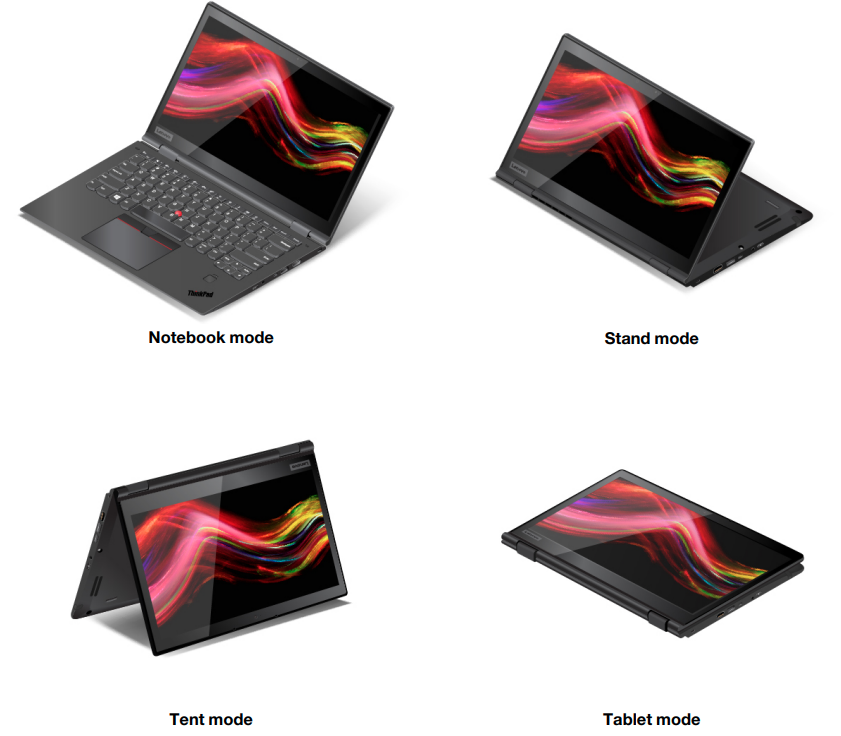
A 14″ 2-in-1 laptop/tablet.
Amazing: Great ports, a great keyboard which retracts when in tent or tablet modes, keyboard spill protection, fingerprint on-chip that Windows can’t see, built-in stylus, and the manufacturer has repair videos and detailed troubleshooting/maintenance documentation.
|
The various modes
|
 Switching modes
|
 |
 |
 |
 |
 |
 Flat mode, hovering, from the side
|
 Tablet mode (landscape) and pen
|
 Presentation mode
|
 Presentation mode
|
 The three logos
|
 Connectors
|
 Connectors
|
 Connectors
|
 Connectors
|
 TrackPoint caps
|
- Forums > ThinkPad X Series Laptops
- https://support.lenovo.com/us/en/solutions/ht503909 [ 1 ] [ 2 ]
-
Linux > https://support.lenovo.com/us/en/solutions/pd031426 [ 3 ]
–
-
The listing said it was:
20LD001GUS(20LD) but it is20LES1M103(20LE)i5-8250Ubut it isi5-8350U- A comparison make it a significant difference.
-
2024-07-26 – Purchased
Notes / Usage / Troubleshooting ∞
- The touchpad is also clickable.
- The physical buttons are actually really nice. Unfortunately the middle button isn’t a
middle-clickbut a button you hold to scroll with the TrackPoint. - Matte black and collects fingerprints like crazy.
- TODO – Try overclocking the refresh rate over 60 Hz.
- The keyboard begins to retract when moved back past its flat state; it is fully retracted in tent/presentation or tablet modes.
- The machine type and serial number can be confirmed in the BIOS.
-
The Windows license can be confirmed in the BIOS.
- I read (somewhere) that it can be confirmed in firmware, but I didn’t note where I got that knowledge and so I cannot confirm that.
- Sleep mode will have the red
iin the ThinkPad glow/strobe. It is in the back of the screen (the lid). - TODO – I don’t know to hibernate.
-
It can use a Kensington MicroSaver or Mini Saver. The Kensington Security Slot is to protect an employee not a laptop. Some locks are garbage, and some laptops are garbage.
-
Lenovo Vantage is absolutely critical.
Fn–F12launches Lenovo Vantage by default (but can be customized within Lenovo Vantage.
- This edition has no NFC functionality; no logo is present on the left palm rest.
-
TODO; get – They have a “Drive Erase Utility”
- ThinkPad Drive Erase Utility for Resetting the Cryptographic Key and Erasing the Solid State Drive.
- Determine if that one is applicable to me or if there’s some older version for my Yoga 3rd Gen.
- The memory is soldered on.
- When cleaning the monitor, wipe from top to bottom; I don’t know why.
-
When cleaning the keyboard, clean one key at the time to avoid your cloth catching on a key and pulling it.
- Consider retracting the keyboard (e.g. tablet mode) to clean the gaps between keys or to wipe more broadly/freely.
-
A new Trackpad® pointing stick (red nub) can be purchased, and user-installed easily see p.26 of the User Guide.
- I guess you just yank it off.
- Some third-party/clone sellers might call it a “TrackPoint Cap”.
-
A camera guard for the webcam on some models, but not mine.
- Instead, infrared for some models like mine, for, e.g., facial recognition with Windows Hello.
- The traditional camera has an indicator light when it is in use.
- I don’t know if the secondary infrared camera an indicator light as well. I don’t see any physical indication of one and I don’t know how to test it; presumably I could use Windows Hello or the like.
- Has a Windows 10 Pro license which will grandfather into Windows 11 Pro if Windows 11 is installed.
FRUmeans Field Replaceable Unit; a component which a service professional can replace.CRUmeans Customer Replaceable Unit; a component which a customer can fairly easily replace.- Wireless reception is best when the screen is greater than 90° open. I don’t know if flat (180°) or tablet (360°) are included.
- Your Bluetooth file transfer speed will be shit when Wi-Fi is on / in use.
- Supposedly an external HDMI monitor is capped at 24 Hz, but mine was at 75 Hz.
-
Supposedly a USB-C monitor is capped at 60 Hz, but mine was at 75 Hz with a basic hub (not a fancy thunderbolt dock).
- TODO – check the refresh of Miracast monitors.
-
TODO; confirm – Only the main display can do DirectDraw or Direct3D
- I don’t know what they meant by “main display”.
-
To dock and used it closed, you would change your Windows settings to, when plugged in, do nothing when the lid is closed.
- TODO – instructions
-
Hibernation mode uses zero power, but can use a little power so that it can be set so that certain events can wake it up.
- Control Panel > System and Security > Administrative Tools > Task Scheduler — select a left-hand task folder. Select a scheduled task > Conditions. Power > Wake the computer to run this task
- TODO – check that nothing is set to wake the computer.
- TODO – Coin battery health can be voltage-checked, and there are instructions in the documentation.
- TODO – How do I check the pen battery health?
- TODO – I found another smaller slot which might be used for other storage, but isn’t noted in the documentation. TODO – double-check.
- Regarding the pen. While the screen seems to work well with ones palm pressed against it, if there are problems with your hand touching it, then use the pen more upright, touch the tip, and then you can let your palm rest comfortably. The pen/whatever is designed to know to reject other things when it knows the pen is in use.
-
Note that a traditional microphone will not work in the audio jack; it is meant for either headphones or a headset.
- TODO – Will a microphone work with an audio breakout cable?
-
There are lights on the which illuminate when either the speaker or microphone are muted.
- If the microphone is disabled in BIOS, then the microphone key does not illuminate when pressed.
- When charging the battery, its temperature must be at least 10° C (50° F). (User guide p.12)
- The defaults to
right-clickis totap-hold,two-tap, ortapthe bottom-right corner. - I don’t see a way to
middle-clickwith the touch screen. I’m expecting athree-finger tap. - TODO – How do I calibrate the touch screen? I found touch screen testing in the diagnostics.
- TODO – How do I calibrate the touch screen using a pen? There aren’t even diagnostics for this.
Diagnostics UEFI ∞
Holy fuck it has a suite of diagnostics built-in.
F12on startup-
App Menu > Lenovo Diagnostics
System Information [F1]:
- Machine Type-Model (MTM)
-
Serial Number
- Also found in the BIOS
-
NVMe serial number
TODO – WAN ∞
- The BIOS lists it as something I can disable.
- I have WAN hardware according to the device manager
- Lenovo Mobile Broadband Activation says “There is not a supported wireless WAN card installed in this computer.”
-
The back hatch seems to have some structure to it.
- TODO – Try putting a sim card in there.
-
I don’t know how to use it anyway, so I’ll disable it.
TODO – GPS ∞
I can’t confirm if I have this. There’s nothing specific noted in the BIOS or listed Windows devices. I can’t recall where I read that if WAN exists, then GPS exists.
-
There’s something called a “ThinkVantage GPS utility”
-
I don’t know how to use GPS on a laptop.
BIOS settings ∞
-
To begin setting things up:
- Enter the BIOS by pressing
F1 - Restart > OS Optimized Defaults [Disabled]
- Load Setup Defaults
- Exit Saving Changes
- (it reboots)
- Enter the BIOS by pressing
-
Enter the BIOS by pressing
F1- Security > Fingerprint > Reset Fingerprint Data
- Security > Fingerprint > Predesktop Authentication Disabled
- Security > Fingerprint > Security Mode [High]
- > Password (all enabled)
- > Security Chip
- Display – Total Graphics Memory [512 MB] [ 4 ]
- Thunderbolt BIOS Assist Mode [Enabled]
- Security > I/O Port Access
— You can disable the integrated camera, integrated microphone, and integrated fingerprint reader - Security > Anti-Theft > Computrace – Current Setting [Disabled]
- Note that in Startup > Bot, you can use
F5/F6to move items up/down - Boot Mode [Diagnostics]
- Restart > Restart Saving Changes
- Passwords are a maximum of only 12 characters.
- Even if the beep is disabled in BIOS, it still issues either while using the BIOS or when entering a BIOS/HDD password.
-
Has SpeedStep technology which can be toggled in BIOS.
- It can likely be further-configured with various Windows 11 settings and further-modified with powercfg, but I don’t particularly care.
- The various onboard devices can be disabled in BIOS: TPM, fingerprint reader, webcam, microphone, etc.
-
Can disable AMT
- HOLY SHIT!
- Can disable the TPM chip.
- Can enable Intel TXT
- Can enable VMM if the OS supports it.
- Can enable VT-d
- The
FnandCtrlkeys are positioned incorrectly, but can be swapped in BIOS. -
Thunderbolt must be enabled to let the pre-OS use it for booting.
- Enabled by default.
- TODO – Can increase the graphics memory to 512 MB, but Windows doesn’t seem to give a shit and makes it shared from all remaining available memory (almost 4 GB).
- TODO – Boot time extension is to delay things to allow external monitors to wake up. This might be essential for docked/closed mode.
-
Can disable UEFI Flash update by end users.
- I did the update once myself, and then locked it down.
- Has bottom cover tamper detection.
- Has Computrace
- Has Intel SGX
-
Can have a nice traditional bootup screen.
- Pressing the pause button (
Fn-s) has not been tested. This startup can be delayed to wake up an external monitor.
- Pressing the pause button (
-
p.76 notes beep errors. There is a diagnostic app.
-
Does not let give battery info or let you change its percentage cap. I don’t know what happens if no OS is installed. Perhaps a reset to default BIOS settings will set the charge cap to 80%?
TODO – Improving battery life ∞
TL;DR: Perform a complete depletion and complete charge.
Note that these instructions are specifically for the Lenovo ThinkPad X1 Yoga 3rd Gen. I do know that recent batteries for more recent devices recommend you do not do this or you will damage your battery. I do not know if doing this repeatedly will damage the battery in a Lenovo ThinkPad X1 Yoga 3rd Gen.
TODO – These instructions are not obvious! I know about:
- Check your battery health using Lenovo Vantage
- Unplug it
-
Windows low power settings
- Set to do nothing
-
Windows critical power settings
- Reduce to 1% and set to do nothing.
- Within Lenovo Vantage, change your upper battery charge limit to 100%
-
Consume power and let it drain down
- Turn the brightness to max
- Consider running benchmarking tests to consume power
- Wait for it to turn off.
- Theoretically it could also be set on a shelf at 1% and allowed to drain on its own.
- It should not turn on when the power button is pressed.
-
Plug it back in.
- The LED on that side will illuminate orange.
- Wait until that light goes white
- Wait longer; I don’t know for how long, because white means 80% I think (TODO – documentation). Try waiting overnight.
- Boot up
- Check your battery health using Lenovo Vantage
- Adjust your Windows low power settings to your preference
- Adjust your Windows critical power settings to your preference
-
Within Lenovo Vantage, adjust your upper battery charge limit to your preference
- Note that permanently keeping it at 100% to overcome the previous health-erosion is valid but will continue to degrade your battery life over time.
Function keys ∞
| Result | Function key | |
|---|---|---|
| Break | Fn-b |
|
| Scroll Lock | Fn-k |
|
| Pause | Fn-p |
|
| SysRq | Fn-s |
|
Home |
Fn-left [ 5 ] |
|
End |
Fn-right [ 6 ] |
|
| sleep | Fn-4 |
To wake, either press the Fn key or the power button. [ 7 ] |
Note that there is no Fn key for pageup/pagedown; you must use the dedicated keys.
How to do the accelerometer interactive diagnostic tests ∞
This series of tests has instructions which are extremely difficult to understand.
detailed instructions for the accelerometer interactive diagnostic tests
- “Perpendicular” means 90°, or a right-angle. It is an
Lshape. - Portrait means the screen will be tall like a piece of paper in a binder or clipboard.
- Landscape means the screen will be wide, like the paper turned on its side.
- If at any point you accidentally touch the screen while manipulating it, you may need to momentarily return it to laptop mode and then
alt-tabback to the latest popup which is giving you directions (the popup with theokbutton). - By “Home” they mean the
homekey on the keyboard. When they talk about how thehomekey is pointed, they don’t mean what you would usually think: A normal person would say something like “when I look down at my keyboard the enter key is on the right” and so they would say “when I look down at my Yoga keyboard thehomekey is on the right” (because it is; it’s at the top-right). This is not what the accelerometer diagnostics means. They mean that when it is in laptop mode and you can look down at your keyboard thehomekey is up (toward the ceiling). Ignore the instructions from their diagnostics, they are neither intuitive nor literal. Follow my instructions precisely. -
If you fail any test you will be returned to the sensor diagnostics screen and will have to repeat these pain-in-the-ass instructions from the beginning:
- Click “select all” to un-select everything
- Click “Accelerometer user test” (or whatever it is; I didn’t take notes)
- Begin the test anew
- Repeat the tests you had previously passed
–
Begin these tests with your Yoga in laptop mode.
-
“screen facing up”
- “Yoga flat mode”.
- (1) Bend the screen back flat against your desk.
- The screen will be landscape and will face the ceiling.
- The keyboard will face the ceiling.
- You will be able to let it go and the Yoga will rest and be usable as a landscape device. I guess this mode is for people who like to stand but don’t have a standing desk.
- Press
enteror tap “Ok”
-
“screen perpendicular,
homeon the bottom”- “Yoga laptop mode”
- (1) Bend the screen forward toward you.
- The screen will face your chest, and will be landscape.
- The keyboard remains in place and will continue to face the ceiling.
- You will be able to let it go and the Yoga will rest and be usable as a landscape laptop device.
- Press
enteror tap “Ok” - No, this step does not mean “presentation landscape” with the keyboard underneath. Although that would literally be the screen perpendicular and the
homekey on the bottom, it would be wrong.
-
“screen perpendicular,
homeon the right”- “Yoga stand mode”.
- Manipulating the Yoga will be complex; be patient!
- (1) Bend the screen back into “flat mode” (from step 1).
- (2) Continue to bend the screen back just a little bit more, until a gap of air appears between your desk and the Yoga.
- (3) Pick the Yoga up and turn the Yoga over onto your desktop and onto its left-hand edge (The Lenovo ThinkPad X1 Yoga 3rd Gen has its illuminated power button on the side which will then point at the ceiling). Continue to hold it.
- (4) Hold its edges: (a) Hold the screen with your left hand near the camera, and (b) hold the keyboard with your right hand near the
space bar. - (5) Bend the screen back a little bit more, to 90° (adjusting the angle will become obvious)
- (6) Pivot it so the screen faces your chest in portrait.
- The screen will be point to your chest in portrait
- The keyboard will point to the wall on your right; adjust it as necessary.
- You will be able to let go and the Yoga will rest and be usable as a portrait touch device.
- Tap “Ok”
-
(I didn’t note the language for this step)
- “Yoga tablet mode” with the screen down
- Bend the screen back until it becomes a tablet. No air gap will be between the back of the keyboard and the back of the screen.
- Tap “Ok” and quickly-but-gently place it screen-down. It does not matter if you rested the Yoga in portrait or landscape mode. (You might notice the screen turn off since the light sensor gets covered)
- You will be able to let go and the Yoga will rest but not be usable.
- Wait 10 seconds then pick it up the edges; be careful to not touch the screen. Turn it over so you can see the screen.
-
“screen perpendicular,
homeon top”- “Yoga tent mode” held up
- This step is complex; be patient.
- (1) Pick up the Yoga (tablet). Be careful to not accidentally tap the screen.
- (2) Turn/pivot it in the air so it is a tablet in landscape. You would be able to use it as a touch device in tablet mode.
- (3) Rotate it if necessary, so that the hinge-side is pointed to the ceiling.
- (4) Place it on your desk but continue to hold it upright. The hinge-side continues to point to the ceiling. The screen continues to face you.
- (5) Open it a little; bend the screen toward you a little (soon it will be 90°; adjusting the angle will become obvious). By bending it a little, soon you will be able to rest it on your desk.
- (6) You will enter into the state you had with “Yoga stand mode” from step 3.
- (7) Open it up enough to let it rest into “Yoga tent mode”. This is a triangle/pyramid/
Lshape in portrait mode, where you can rest the long/camera-side screen edge on your desk nearest you, and you can use it as a touch device. - (8) Reach behind the screen with one hand and grasp the keyboard by one side.
- (9) With the screen edge still on the desk, tilt the keyboard toward you and do not let go. Adjust/bend the Yoga so that the screen faces you, and the keyboard faces the ceiling. Hold it still, and do not let it rest. It will not be usable; you are holding it.
- Tap “Ok”.
-
“screen perpendicular, home on the left”
- “Yoga stand mode; flipped”
- You will not be bending the screen.
- (1) With the screen still resting on the desk, let the keyboard tilt back. It will return to “Yoga tent mode”. You will be able to let go and the Yoga will rest and be usable as a touch device.
- (2) Turn the Yoga onto its left-hand edge (The Lenovo ThinkPad X1 Yoga 3rd Gen has its illuminated power button on the side which will now be covered by your desk).
- (3) Pivot the Yoga on the desk so the screen faces your chest in portrait and the keyboard points to the wall on your left.
- You will be able to let go and the Yoga will rest and be usable as a portrait touch device.
- Tap “Ok”
Links ∞
-
Product Speficiations Reference – (PSREF)
- ThinkPad X1 Yoga (3rd Gen) Platform Specifications
- Setup Guide
- Hardware Maintenance Manual
- Repair videos
-
20LE Services (probably empty, as it’s unsupported)
Shopping ∞
Footnotes
- was https://support.lenovo.com/solutions/HT503909 [ ↩ ]
- was https://www.lenovo.com/tips [ ↩ ]
- was http://www.lenovo.com/linux [ ↩ ]
- Windows doesn’t seem to care about this total graphics memory setting [ ↩ ]
- Arrow keys [ ↩ ]
- Arrow keys [ ↩ ]
- Note that if you swap the
FnandCtrlkeys, you will still need to press the key labelledFnto wake [ ↩ ]


– Added manual accelerometer test instructions
– Added a significant amount of notes