 |
Problem: Given an item in the Internet Archive, e.g. The works of Ralph Waldo Emerson, you may be tempted to download the PDF for its exactness. Admirable! However, my e-reader is horribly slow for opening it and turning pages. I find slow page turning aggravating; it makes me lose my train of thought and strains my reading comprehension.
Solution: Download a different format of individual images, bulk-scale them down exactly to your device’s screen, then package the images back into one single file.
This extra work is well worth it for me.
-
TODO – See also PDF? I haven’t tested it, but I wonder if “repairing” a PDF would also help with e-reader speed.
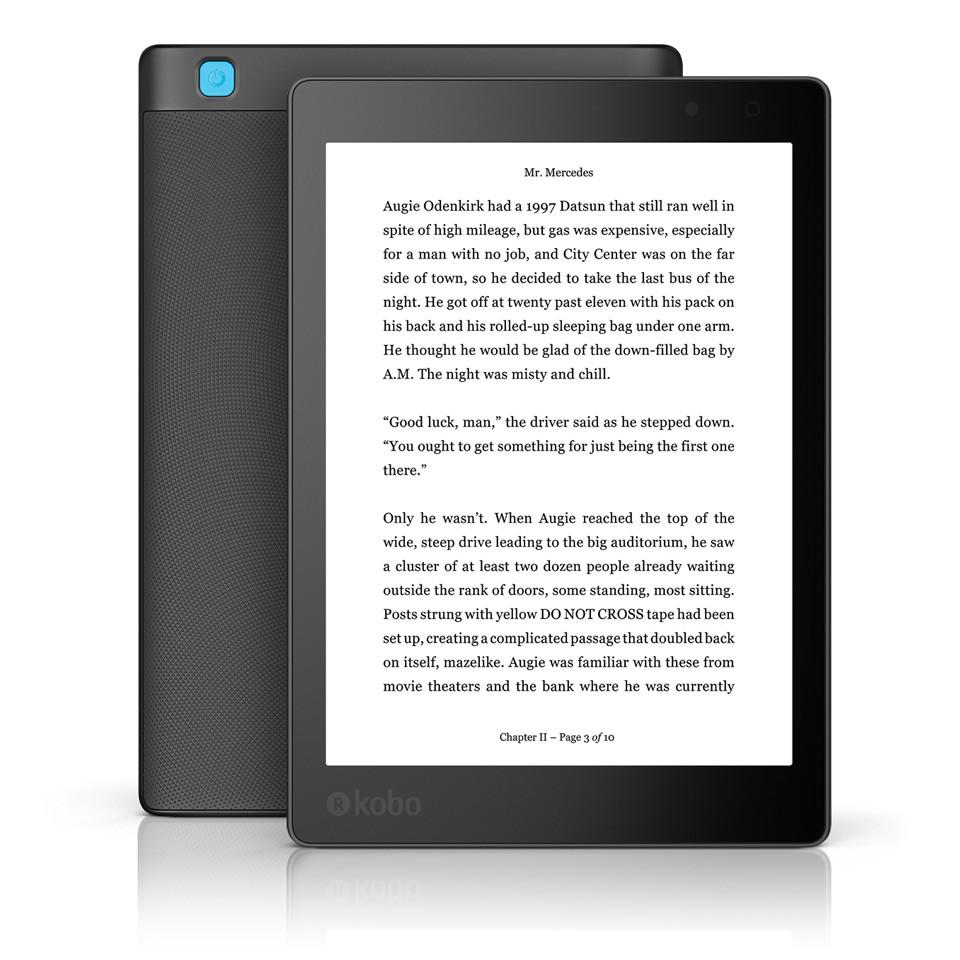
Tested and works with the Kobo Aura ONE
Preparation ∞
- Install IrfanView and it’s plugins package.
- Download the Internet Archive item’s “Single Page Processed JP2 Zip”
-
Unzip that, and notice a folder full of
.jp2files.
Conversion ∞
- Open one of those
.jp2files in Irfanview -
Press
t(thumbnail view)- Wait for the thumbnails to load (You’ll see the counter at the top-left of the window). If you get impatient, you can click “Stop” in the top menu.
- Press
control a(select all) -
right-clickon an item, and pressb(batch conversion)
Batch conversion settings:
- Work as: (o) Batch conversion
-
Batch conversion settings:
- Output format: [TIF – Tagged Image Format]
— Click “Options” (see below) - [x] Use advanced options (for bulk resize…)
— Click “Advanced” (see below)
- Output format: [TIF – Tagged Image Format]
-
Output directory for result files: (or placeholders, like $D)
- Click `Use current (“look in”) directory
- Then append something to the end of the directory it suggests. I end mine with
out\
-
Click
Start Batchat the bottom-left
Batch conversion settings > Options
- (o) Huffman RLE
-
[_] Save palette for greyscale images (default: ON)
Batch conversion settings > Advanced
- [x] RESIZE
-
(o) Set new size:
- (o) Set one or both sides to:
— (These are appropriate for the Kobo Aura ONE. The settings for another e-reader may be different.)
— Width: 1872
— Height: 1404
- (o) Set one or both sides to:
-
Set new DPI value: 300
- (This is appropriate for the Kobo Aura ONE. The setting for another e-reader may be different.)
-
[x] CHANGE COLOR DEPTH
- (o) 2 Colors (black/white) (1 BPP)
You can also copy the below into an .ini file, and use the Load settings function.
settings.ini
[Batch]
AdvCrop=0
AdvCropX=0
AdvCropY=0
AdvCropW=0
AdvCropH=0
AdvCropC=0
AdvResize=1
AdvResizeOpt=0
AdvResizeW=1872.00
AdvResizeH=1404.00
AdvResizeL=0.00
AdvResizeS=0.00
AdvResizeMP=0.00
AdvResample=1
AdvResizePerc=0
AdvResizePercW=0.00
AdvResizePercH=0.00
AdvDPI=300
AdvResizeUnit=0
AdvResizeRatio=1
AdvNoEnlarge=1
AdvNoShrink=0
AdvResizeOnDpi=0
AdvCanvas=0
AdvAddText=0
AdvWatermark=0
AdvReplaceColor=0
AdvUseBPP=1
AdvBPP=2
AdvUseFSDither=1
AdvDecrQuality=0
AdvAutoRGB=0
AdvHFlip=0
AdvVFlip=0
AdvRLeft=0
AdvRRight=0
AdvGray=0
AdvInvert=0
AdvSharpen=0
AdvGamma=0
AdvContrast=0
AdvBrightness=0
AdvSaturation=0
AdvColR=0
AdvColG=0
AdvColB=0
AdvSharpenVal=1
AdvGammaVal=0.00
AdvContrastVal=0
AdvBrightnessVal=0
AdvSaturationVal=0
AdvColRVal=0
AdvColGVal=0
AdvColBVal=0
AdvDelOrg=0
AdvOverwrite=0
AdvSubdirs=0
AdvSaveOldDate=0
AdvAllPages=1
UseAdvOptionsOrder=0
AdvFineR=0
AdvFineRVal=0.00
AdvBlur=0
AdvBlurVal=1
AdvMedian=0
AdvMedianVal=3
AdvRbg=0
AdvBgr=0
AdvBrg=0
AdvGrb=0
AdvGbr=0
AdvAutoCrop=0
AdvOptionsOrder=
[BatchText]
AddText=
TextCoord=0;0;100;100;
Corner=0
Orientation=0
TranspText=1
SemiTranspText=0
FitColorW=1
OutlineFill=0
Outline=0
Emboss=0
Shadow=0
FontColor=65280
TxtBgkr=16777215
FontParam=-13|0|0|0|400|0|0|0|0|1|2|1|49|
Font=Courier
[Effects]
CanvL=10
CanvR=10
CanvT=10
CanvB=10
CanvInside=1
CanvColor=0
CanvMethod=0
CanvW=1920
CanvH=1080
CanvCorner=4
ReplaceColorOld=0
ReplaceColorNew=0
ReplaceColorTol=0
[BatchWatermark]
Coord=10;10;
Corner=0
Image=no image
Transp=33
Completion ∞
- Find your output directory
-
right-clickandSend to>Compressed (zipped) folder - Rename it to something you like. I prefer
Author - Title -
Rename the extension from
.zipto.cbz- If you don’t have extensions visible, then I believe you can pull up the properties of the file (
right-click> Properties) and rename it there.
- If you don’t have extensions visible, then I believe you can pull up the properties of the file (

